View Status Report
When you log into the Grade Change application, you land on the Welcome page. To view your status report, click "Grade Change Status Report" in the Reports section of the sidebar menu.
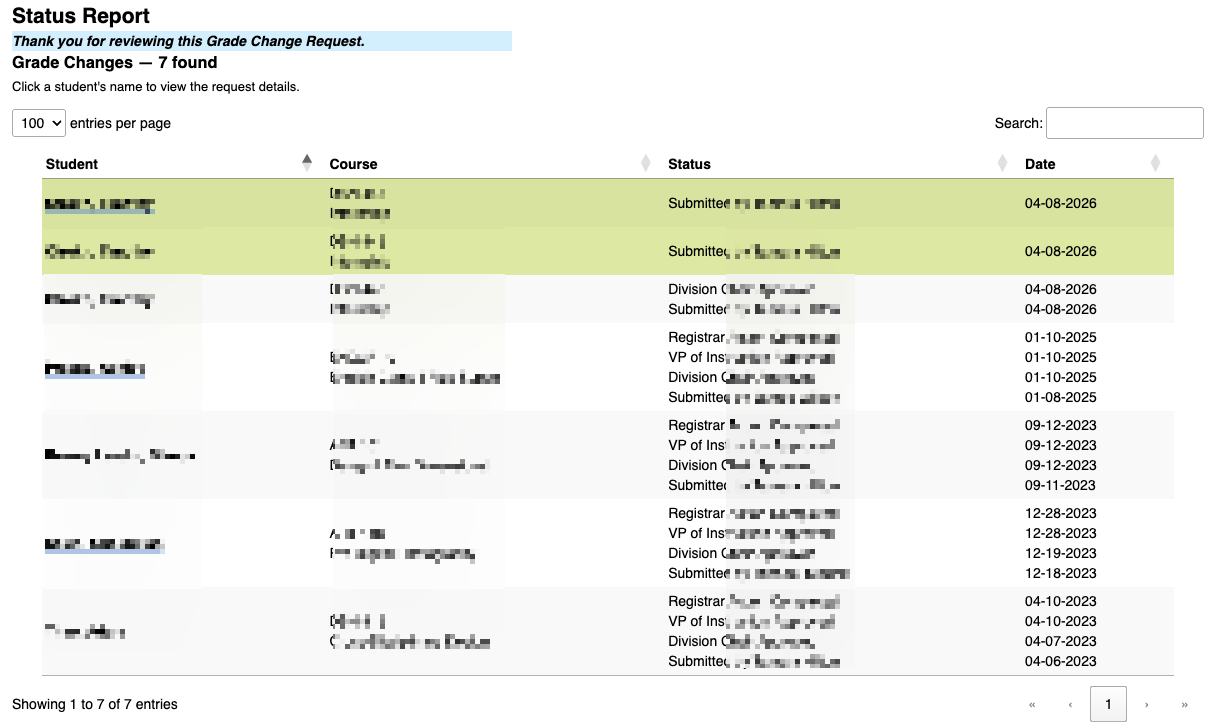
The report shows all of your grade change requests organized by status category:
- Action Items — Requests requiring action from you. These are highlighted in yellow. What you see depends on your role: Division Chairs see requests awaiting their approval, VPs see requests awaiting VP approval, and Registrar staff see requests ready for completion.
- Pending — Requests waiting at other approval stages.
- Completed — Requests that have been fully processed.
- Rejected — Requests that were rejected at any stage.
- Deleted — Requests removed by the instructor.
Only categories that contain requests are displayed. You can show or hide each category by clicking on its title.
Click on a student's name to view the detailed Request Form for that grade change. From there you can see the full approval chain status. If you are the instructor who submitted the request, you also have the option to delete it (as long as it hasn't progressed past Division Chair approval).
To initiate a new grade change request or incomplete contract, click "Submit Request" in the Actions section of the sidebar.